

- Connect endpoints to use SQL, Meta, metrics, and operational tools. This needs no Kubernetes CR grant.
- Attach an existing CR to observe an Operator-managed cluster. This needs a registered Kubernetes target and named-object access.
- Create a managed cluster through Environments. This installs and manages infrastructure and requires broader permissions.
Prerequisites
Console must reach the endpoints you configure:
For endpoint-only connections, use names that resolve from the Console pod. Meta commands can return leader or member addresses after the initial connection, so those advertised addresses must also resolve and be reachable.
Find connected CR and delegated operations have a stricter identity check: SQL and Meta Service addresses must include the namespace, even when Console and RisingWave share a namespace. Use
service.namespace.svc or service.namespace.svc.cluster.local, for example rw-prod-frontend.risingwave-prod.svc:4566 and http://rw-prod-meta.risingwave-prod.svc:5690.
Add a cluster connection
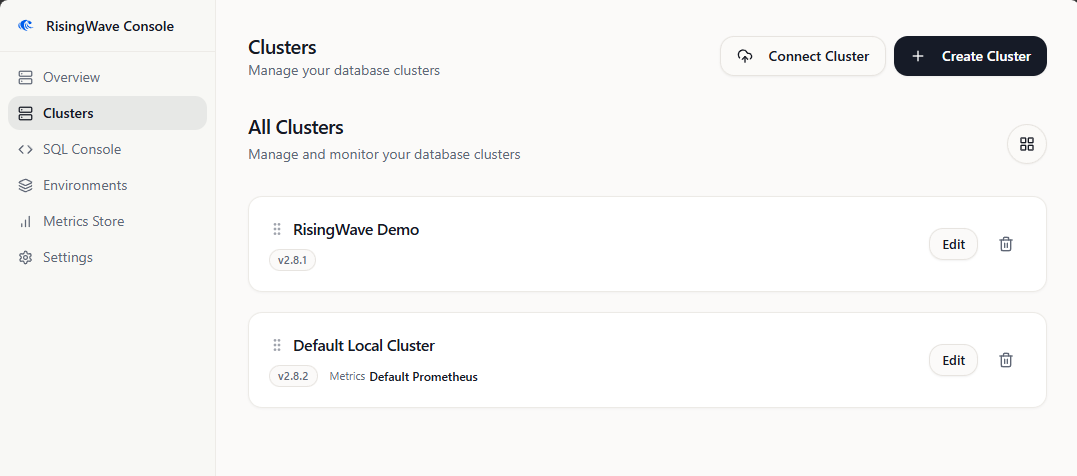
- Open Clusters and select Connect Cluster.
- Enter a unique Name.
- Configure the SQL Endpoint, Meta RPC Endpoint, and Meta HTTP Endpoint.
- Select the Registered RisingWave version. Console uses this requested version for version-selected
risectland metadata-backup tooling. It is not a live version check, an installation action, or a database upgrade. A custom value does not guarantee that its binary is installed or downloadable. - Select a Metrics Store, or select None. None means that no metrics store is linked; it neither installs monitoring nor disables SQL or
risectl. - Select Test Endpoints, review the result, and then select Connect Cluster.
Attach an Operator-managed CR for observation
Attaching is optional. Endpoint-only connections continue to work without Kubernetes management grants.A platform administrator must first register a trusted Kubernetes target for
the actual Console organization and allow the CR namespace. The target
identity needs
get on the named RisingWave CR. For the same-cluster path,
that identity is Console’s pod ServiceAccount and the Role and RoleBinding
are in the RisingWave namespace. A Console organization administrator
performs the attachment. Console authorization and Kubernetes RBAC are
separate layers.Find and attach the CR
- Open the cluster details Overview and find RisingWave configuration.
- Select the registered Platform target and an allowed Namespace.
- Choose one method:
- Select Find connected CR when the SQL and Meta endpoints use namespace-qualified internal Kubernetes Service addresses. The target identity needs
geton those exact Services in addition togeton the named CR. Console follows controller owner references and checks CR identity; it does not list CR or Service collections and is not a namespace browser. - Enter the exact CR name, then select Preview, when discovery is unavailable. A platform administrator can provide the namespace and name. This path also supports observation through an appropriately registered remote target.
- Select Find connected CR when the SQL and Meta endpoints use namespace-qualified internal Kubernetes Service addresses. The target identity needs
- Review the target, namespace, CR identity, endpoints, and attestation preview, then select the confirmation checkbox.
- Select Bind for observation.
Attachment lifecycle
- Applying RBAC does not add v0.8.0 APIs or UI to an older image and does not register a target. RBAC additions normally need no Console restart; target or image changes require a normal Console rollout.
- Disconnect CR removes only Console’s CR binding. It does not delete the CR or the database cluster.
- If bound SQL or Meta endpoints change, disconnect and bind again so the new identity can be reviewed. Do not rely on an old binding for new endpoints.
- A CR being deleted can remain observable while it still exists and Console retains read access. Delegated changes are disabled during deletion. A missing, inaccessible, or UID-replaced CR cannot be treated as the previously observed object. Bind a recreated CR as a new identity.
- An in-cluster ServiceAccount grant does not authorize a remote identity. Remote observation needs separately registered credentials.
Endpoint examples
Meta RPC and HTTP can use different ports on the same Service. Service names are deployment-specific. Short Kubernetes names can work for endpoint-only connections, but v0.8.0 does not accept them for Find connected CR or delegated identity verification.