> ## Documentation Index
> Fetch the complete documentation index at: https://docs.risingwave.com/llms.txt
> Use this file to discover all available pages before exploring further.
# Ingest data from Instaclustr Kafka
> You can ingest data from Kafka deployed in Instaclustr, a fully managed and integrated platform with popular open-source tools such as Kafka, PostgreSQL, Cassandra, and Redis. It facilitates easy Kafka Connect integration and includes a dedicated ZooKeeper along with Kraft that delivers a seamless Kafka journey with a 100% open-source solution.
## Set up Kafka on Instaclustr Cloud
This guide goes through the steps to create a Kafka cluster in Instaclustr and to connect it to RisingWave for data ingestion. For more information regarding the data ingestion from Instaclustr Cloud, please refer to [Instaclustr Documentation](https://www.instaclustr.com/support/documentation/).
### Sign up for an Upstash Cloud account
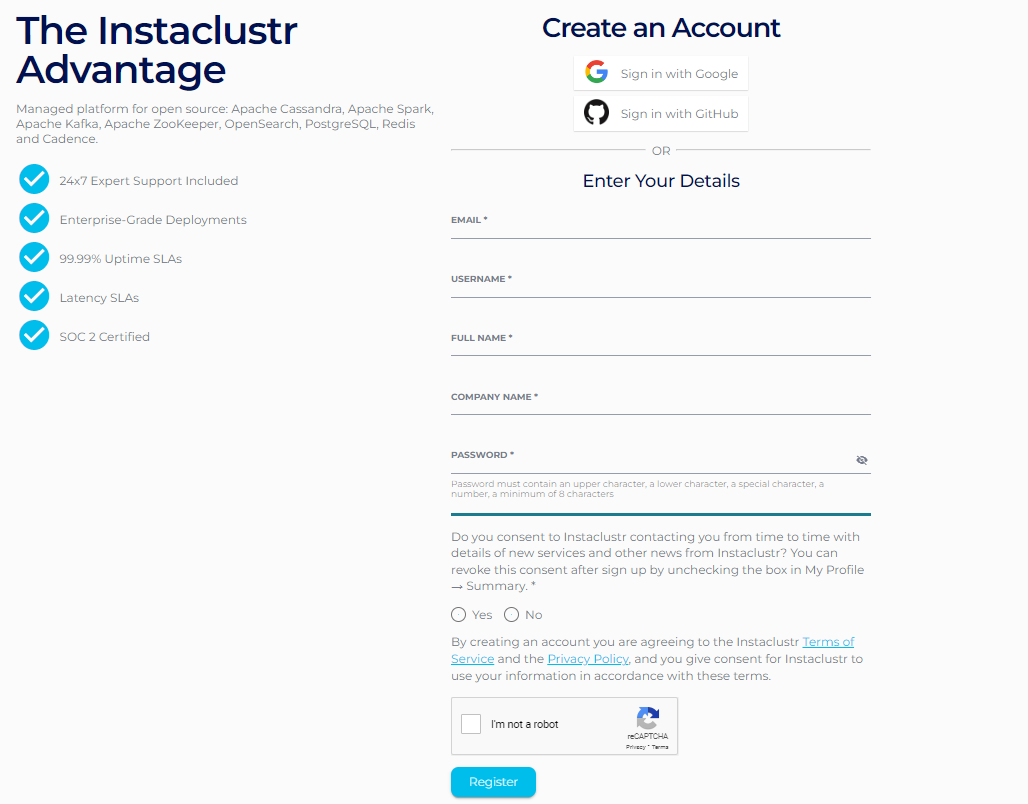
Start by signing up for a free Instaclustr account, which will grant you access to Kafka services. To create your account, visit [Instaclustr Cloud](https://console2.instaclustr.com/signup?%5Fgl=1%2Ajofjww%2A%5Fga%2AOTI5OTY0NzUuMTY5OTU5NTc3Mw..%2A%5Fga%5F4NBQSJMP6D%2AMTcwMTM1MjQwMi4xMy4xLjE3MDEzNTI0ODMuNDAuMC4w&%5Fga=2.16614709.220277079.1701352406-92996475.1699595773).
 ### Create a Kafka cluster
Once you are logged in, follow the instructions in [Getting Started with Apache Kafka](https://www.instaclustr.com/support/documentation/kafka/getting-started-with-kafka/creating-a-kafka-cluster/) to create a Kafka cluster in the Instaclustr Cloud.
### Create a Kafka cluster
Once you are logged in, follow the instructions in [Getting Started with Apache Kafka](https://www.instaclustr.com/support/documentation/kafka/getting-started-with-kafka/creating-a-kafka-cluster/) to create a Kafka cluster in the Instaclustr Cloud.
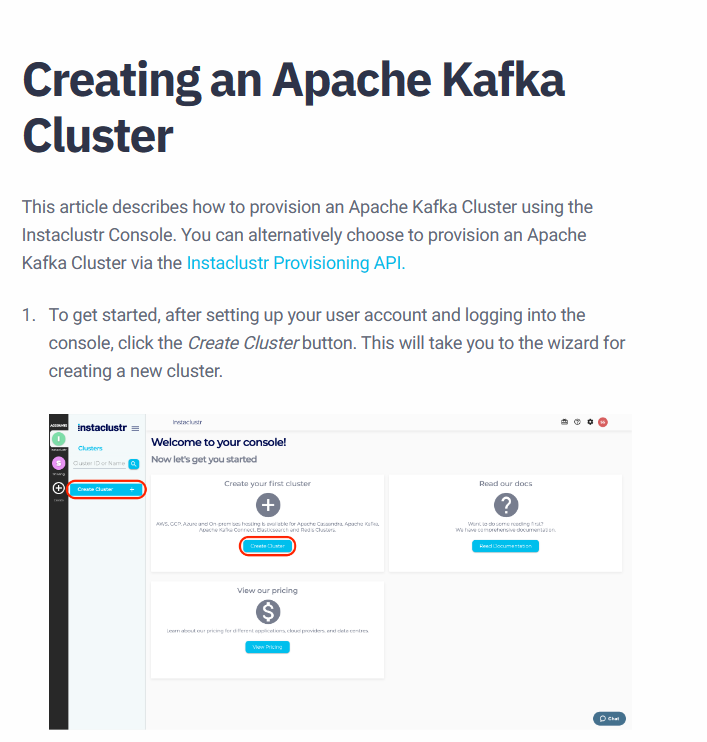 After successfully creating a Kafka cluster and then, a Kafka topic, add the IP address of the connecting computer to the cluster Firewall Rules to produce and consume data.
 ### Connect and interact with your Kafka cluster
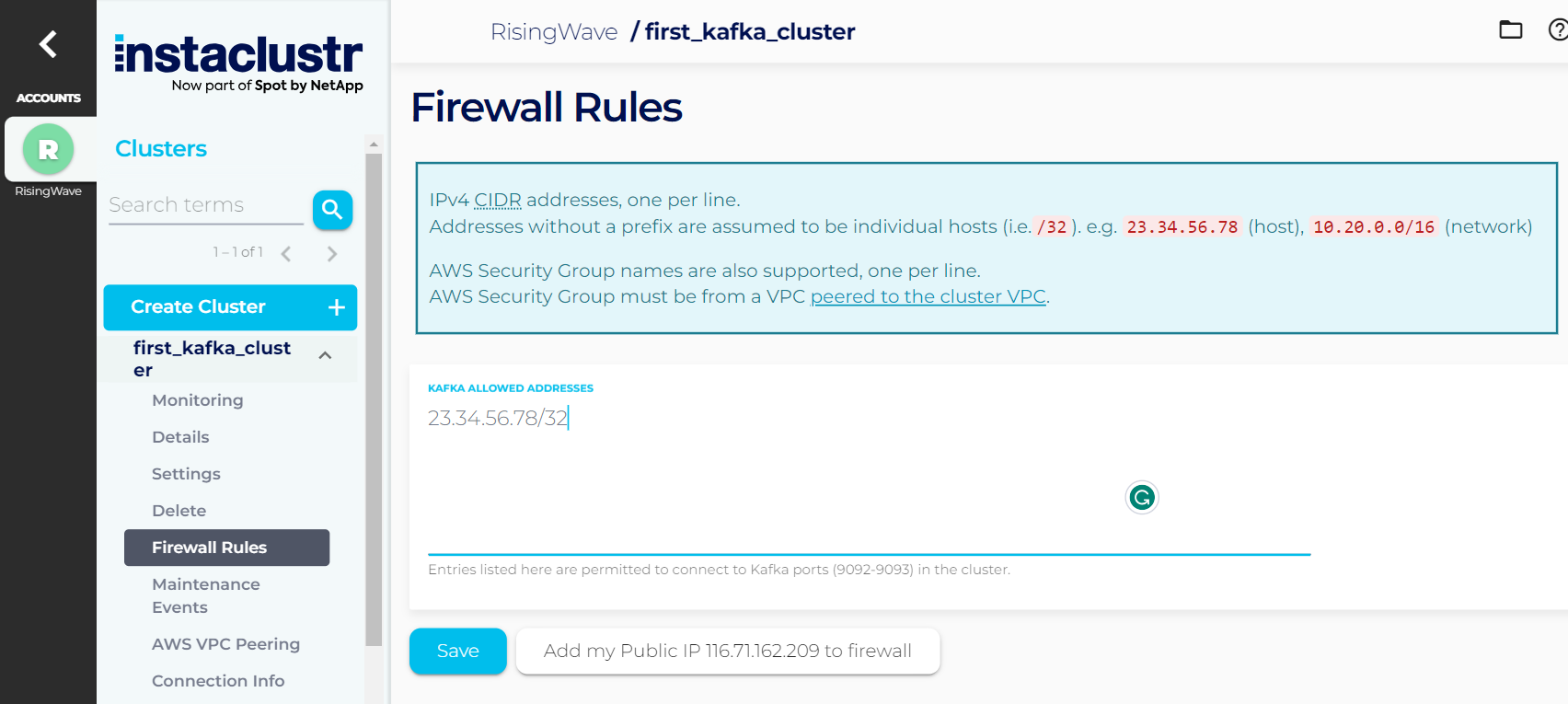
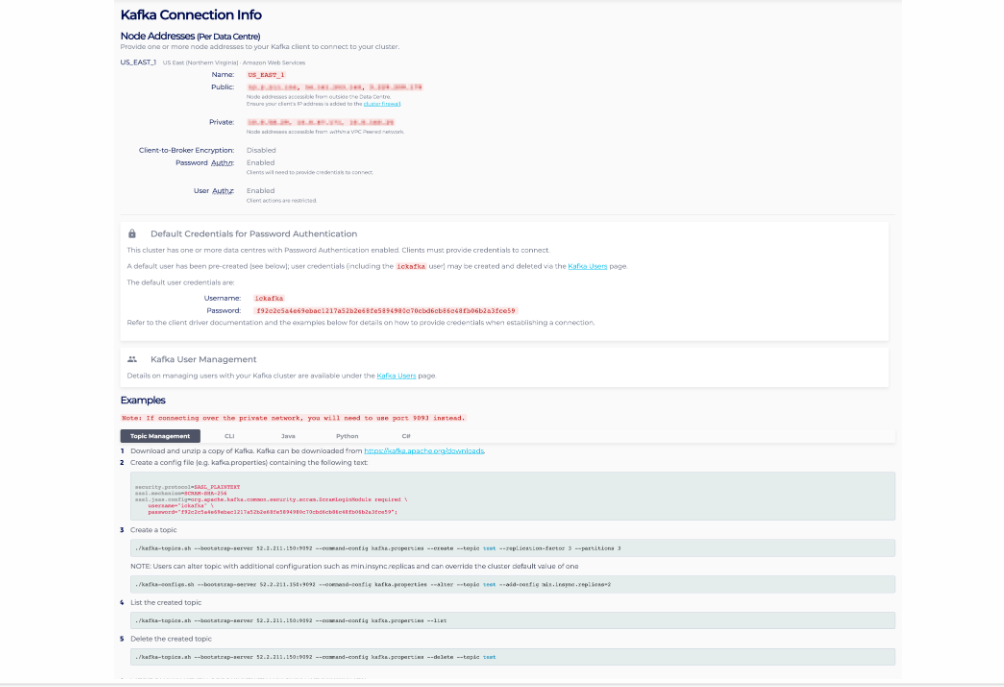
You can connect with the Kafka cluster using various clients and languages such as Java, C#, Python, and Ruby to produce and consume Kafka messages using the Connection Info page that contains a list of your node addresses, authentication credentials to connect to your cluster, and a few connection examples for popular clients Kafka supports. Therefore, you can extract real-time flight data from the AviationStck API and feed it into a Kafka topic in the Kafka cluster deployed in the Instaclustr Cloud.
### Connect and interact with your Kafka cluster
You can connect with the Kafka cluster using various clients and languages such as Java, C#, Python, and Ruby to produce and consume Kafka messages using the Connection Info page that contains a list of your node addresses, authentication credentials to connect to your cluster, and a few connection examples for popular clients Kafka supports. Therefore, you can extract real-time flight data from the AviationStck API and feed it into a Kafka topic in the Kafka cluster deployed in the Instaclustr Cloud.
 After these steps, you are on your way to build stream processing applications and pipelines both using Kafka deployed in Instaclustr cloud and RisingWave!
## Ingest data from Instaclustr Kafka
### Create a RisingWave project
You can create a RisingWave project and connect to it by following the steps in the [Quick Start](/get-started/quickstart) in the RisingWave documentation.
### Create a source
Once you have successfully deployed the RisingWave project and connected to it, proceed to create a source in RisingWave to ingest data from Instaclustr Kafka.
```sql theme={null}
CREATE SOURCE aviation_source (
flight_date VARCHAR,
flight_status VARCHAR,
departure_airport VARCHAR,
departure_timezone VARCHAR,
departure_iata VARCHAR,
departure_icao VARCHAR,
departure_terminal VARCHAR,
departure_gate VARCHAR,
departure_delay VARCHAR,
departure_scheduled TIMESTAMP WITH TIME ZONE,
departure_estimated TIMESTAMP WITH TIME ZONE,
departure_actual TIMESTAMP WITH TIME ZONE,
departure_estimated_runway TIMESTAMP WITH TIME ZONE,
departure_actual_runway TIMESTAMP WITH TIME ZONE,
arrival_airport VARCHAR,
arrival_timezone VARCHAR,
arrival_iata VARCHAR,
arrival_icao VARCHAR,
arrival_terminal VARCHAR,
arrival_gate VARCHAR,
arrival_baggage VARCHAR,
arrival_delay VARCHAR,
arrival_scheduled TIMESTAMP WITH TIME ZONE,
arrival_estimated TIMESTAMP WITH TIME ZONE,
arrival_actual TIMESTAMP WITH TIME ZONE,
arrival_estimated_runway TIMESTAMP WITH TIME ZONE,
arrival_actual_runway TIMESTAMP WITH TIME ZONE,
airline_name VARCHAR,
airline_iata VARCHAR,
airline_icao VARCHAR,
flight_number VARCHAR,
flight_iata VARCHAR,
flight_icao VARCHAR,
codeshared_airline_name VARCHAR,
codeshared_airline_iata VARCHAR,
codeshared_airline_icao VARCHAR,
codeshared_flight_number VARCHAR,
codeshared_flight_iata VARCHAR
) WITH (
connector = 'kafka',
topic='Insta-topic',
properties.bootstrap.server = 'x.x.x.x:9092',
scan.startup.mode = 'earliest',
properties.sasl.mechanism = 'SCRAM-SHA-256',
properties.security.protocol = 'SASL_PLAINTEXT',
properties.sasl.username = 'ickafka',
properties.sasl.password = 'xxxxxx'
) FORMAT PLAIN ENCODE JSON;
```
### Create a materialized view
Let's create a materialized view named `aviation_mv` based on the source `aviation_source`, to transform and cast certain columns from the source data, effectively modifying their data types.
```sql theme={null}
CREATE MATERIALIZED VIEW aviation_mv AS
SELECT
flight_date,
departure_airport,
CAST(departure_scheduled AS TIMESTAMP) AS departure_scheduled,
CAST(departure_estimated AS TIMESTAMP)AS departure_estimated,
arrival_airport,
CAST(arrival_scheduled AS TIMESTAMP) AS arrival_scheduled,
airline_name,
flight_number,
FROM aviation_source;
```
### Query the materialized view
The materialized view can be queried to retrieve the latest data from the source:
```sql theme={null}
SELECT * FROM aviation_mv LIMIT 5;
```
The retrieved result should look like this:
```bash theme={null}
| flight_date | flight_status | departure_airport | departure_scheduled | departure_estimated | arrival_airport | arrival_scheduled | airline_name | flight_number
--------------+---------------+-----------------------------------------------------+---------------------------+---------------------------+-----------------------------------------------------+---------------------------+----------------------+------------------
| 2023-12-21 | scheduled | Melbourne - Tullamarine Airport | 2023-12-21T00:30:00Z | 2023-12-21T00:30:00Z | Kuala Lumpur International Airport (klia) | 2023-12-21T05:45:00Z | KLM | KL4109
| 2023-12-21 | scheduled | Taiwan Taoyuan International (Chiang Kai Shek Int'l)| 2023-12-21T00:05:00Z | 2023-12-21T00:05:00Z | Hong Kong International | 2023-12-21T02:00:00Z | EVA Air | BR2895
| 2023-12-21 | scheduled | Ngurah Rai International | 2023-12-21T00:10:00Z | 2023-12-21T00:10:00Z | Adelaide International Airport | 2023-12-21T07:40:00Z | Virgin Australia | VA110
| 2023-12-21 | scheduled | Hangzhou | 2023-12-21T00:10:00Z | 2023-12-21T00:10:00Z | Doha International | 2023-12-21T05:10:00Z | Qatar Airways | QR891
| 2023-12-21 | scheduled | Hangzhou | 2023-12-21T00:10:00Z | 2023-12-21T00:10:00Z | Kansai International | 2023-12-21T04:50:00Z | YTO Cargo Airlines | YG9133
(5 rows)
```
You have successfully consumed data from a Kafka topic into the RisingWave, created a source and a materialized view, and then queried it.
After these steps, you are on your way to build stream processing applications and pipelines both using Kafka deployed in Instaclustr cloud and RisingWave!
## Ingest data from Instaclustr Kafka
### Create a RisingWave project
You can create a RisingWave project and connect to it by following the steps in the [Quick Start](/get-started/quickstart) in the RisingWave documentation.
### Create a source
Once you have successfully deployed the RisingWave project and connected to it, proceed to create a source in RisingWave to ingest data from Instaclustr Kafka.
```sql theme={null}
CREATE SOURCE aviation_source (
flight_date VARCHAR,
flight_status VARCHAR,
departure_airport VARCHAR,
departure_timezone VARCHAR,
departure_iata VARCHAR,
departure_icao VARCHAR,
departure_terminal VARCHAR,
departure_gate VARCHAR,
departure_delay VARCHAR,
departure_scheduled TIMESTAMP WITH TIME ZONE,
departure_estimated TIMESTAMP WITH TIME ZONE,
departure_actual TIMESTAMP WITH TIME ZONE,
departure_estimated_runway TIMESTAMP WITH TIME ZONE,
departure_actual_runway TIMESTAMP WITH TIME ZONE,
arrival_airport VARCHAR,
arrival_timezone VARCHAR,
arrival_iata VARCHAR,
arrival_icao VARCHAR,
arrival_terminal VARCHAR,
arrival_gate VARCHAR,
arrival_baggage VARCHAR,
arrival_delay VARCHAR,
arrival_scheduled TIMESTAMP WITH TIME ZONE,
arrival_estimated TIMESTAMP WITH TIME ZONE,
arrival_actual TIMESTAMP WITH TIME ZONE,
arrival_estimated_runway TIMESTAMP WITH TIME ZONE,
arrival_actual_runway TIMESTAMP WITH TIME ZONE,
airline_name VARCHAR,
airline_iata VARCHAR,
airline_icao VARCHAR,
flight_number VARCHAR,
flight_iata VARCHAR,
flight_icao VARCHAR,
codeshared_airline_name VARCHAR,
codeshared_airline_iata VARCHAR,
codeshared_airline_icao VARCHAR,
codeshared_flight_number VARCHAR,
codeshared_flight_iata VARCHAR
) WITH (
connector = 'kafka',
topic='Insta-topic',
properties.bootstrap.server = 'x.x.x.x:9092',
scan.startup.mode = 'earliest',
properties.sasl.mechanism = 'SCRAM-SHA-256',
properties.security.protocol = 'SASL_PLAINTEXT',
properties.sasl.username = 'ickafka',
properties.sasl.password = 'xxxxxx'
) FORMAT PLAIN ENCODE JSON;
```
### Create a materialized view
Let's create a materialized view named `aviation_mv` based on the source `aviation_source`, to transform and cast certain columns from the source data, effectively modifying their data types.
```sql theme={null}
CREATE MATERIALIZED VIEW aviation_mv AS
SELECT
flight_date,
departure_airport,
CAST(departure_scheduled AS TIMESTAMP) AS departure_scheduled,
CAST(departure_estimated AS TIMESTAMP)AS departure_estimated,
arrival_airport,
CAST(arrival_scheduled AS TIMESTAMP) AS arrival_scheduled,
airline_name,
flight_number,
FROM aviation_source;
```
### Query the materialized view
The materialized view can be queried to retrieve the latest data from the source:
```sql theme={null}
SELECT * FROM aviation_mv LIMIT 5;
```
The retrieved result should look like this:
```bash theme={null}
| flight_date | flight_status | departure_airport | departure_scheduled | departure_estimated | arrival_airport | arrival_scheduled | airline_name | flight_number
--------------+---------------+-----------------------------------------------------+---------------------------+---------------------------+-----------------------------------------------------+---------------------------+----------------------+------------------
| 2023-12-21 | scheduled | Melbourne - Tullamarine Airport | 2023-12-21T00:30:00Z | 2023-12-21T00:30:00Z | Kuala Lumpur International Airport (klia) | 2023-12-21T05:45:00Z | KLM | KL4109
| 2023-12-21 | scheduled | Taiwan Taoyuan International (Chiang Kai Shek Int'l)| 2023-12-21T00:05:00Z | 2023-12-21T00:05:00Z | Hong Kong International | 2023-12-21T02:00:00Z | EVA Air | BR2895
| 2023-12-21 | scheduled | Ngurah Rai International | 2023-12-21T00:10:00Z | 2023-12-21T00:10:00Z | Adelaide International Airport | 2023-12-21T07:40:00Z | Virgin Australia | VA110
| 2023-12-21 | scheduled | Hangzhou | 2023-12-21T00:10:00Z | 2023-12-21T00:10:00Z | Doha International | 2023-12-21T05:10:00Z | Qatar Airways | QR891
| 2023-12-21 | scheduled | Hangzhou | 2023-12-21T00:10:00Z | 2023-12-21T00:10:00Z | Kansai International | 2023-12-21T04:50:00Z | YTO Cargo Airlines | YG9133
(5 rows)
```
You have successfully consumed data from a Kafka topic into the RisingWave, created a source and a materialized view, and then queried it.