> ## Documentation Index
> Fetch the complete documentation index at: https://docs.risingwave.com/llms.txt
> Use this file to discover all available pages before exploring further.
# Monitor messages and alerts
> Monitor system messages and alerts across your projects, and set who gets notified by email.
RisingWave Cloud provides a centralized **Messages and Alerts** interface to view and manage all system notifications for your projects. It helps you quickly identify issues, understand their impact, and ensure the right people are notified in time. You can filter alerts by severity and function category, review details, and configure notification preferences.
## Notification list
In RisingWave Cloud, click the bell icon in the top-right corner to open the **Messages and Alerts** list. It allows you to filter notifications for efficient monitoring and issue diagnosis.
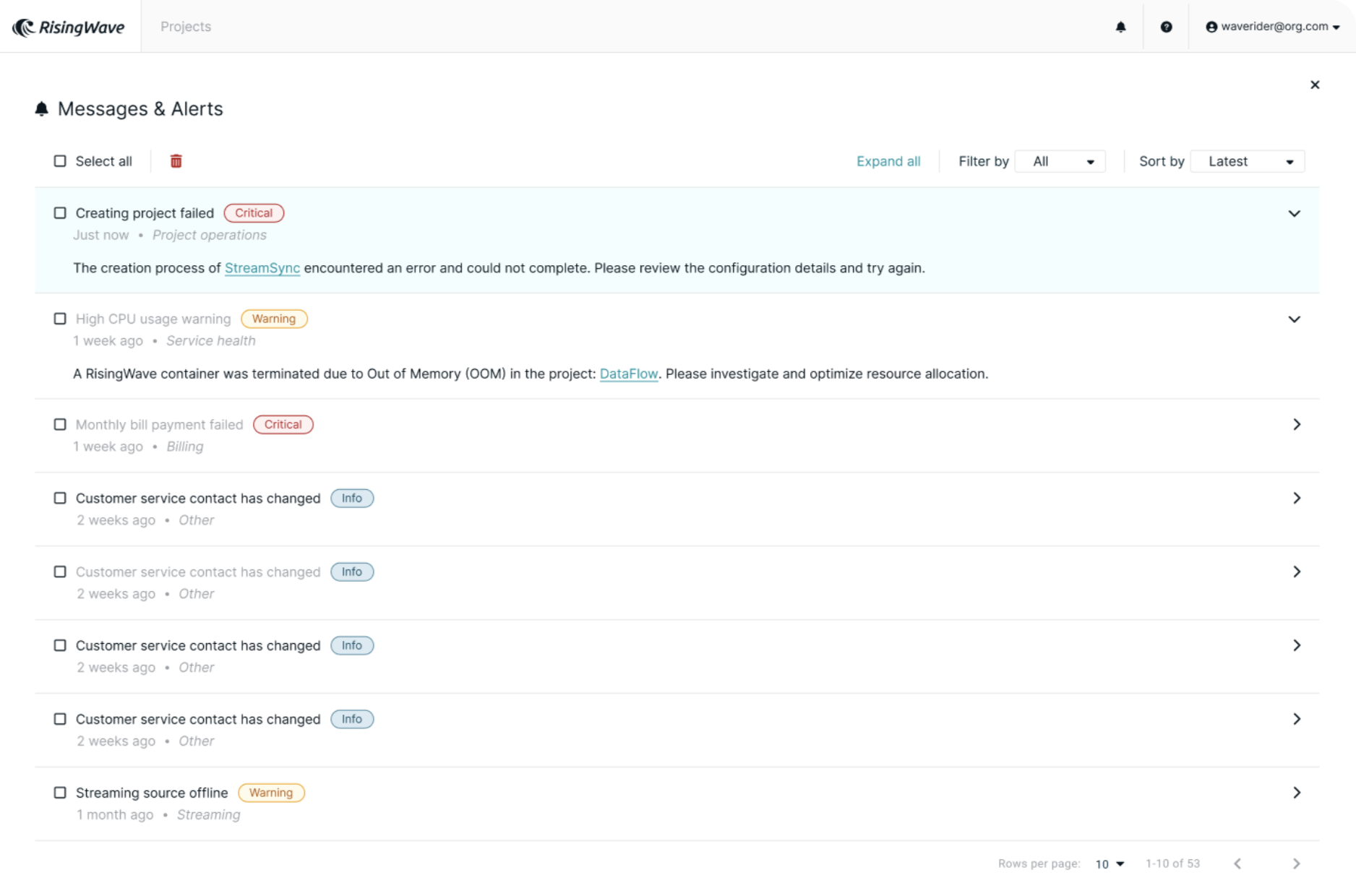 You can filter notifications by two main criteria:
* **Severity levels**: Alerts are classified by severity to help prioritize your response.
| Severity levels | Description | Example |
| :-------------- | :----------------------------------------------------------------------------- | :------------------------------------ |
| Critical | Issues requiring immediate attention to avoid service disruption or data loss. | Streaming job failure, node outage. |
| Warning | Non-blocking issues that may escalate if unaddressed. | High memory usage, compaction delays. |
| Info | Informational updates that do not indicate a problem. | Customer service contact changed. |
* **Function categories**: Alerts are classified by the relevant system component or function.
| Category | Description |
| :----------------- | :---------------------------------------------------- |
| Service Health | Status and availability of core services. |
| Streaming | Data pipeline performance and processing errors. |
| Compaction | Storage compaction schedules, delays, or failures. |
| Project operations | Project-level changes, deployments, or failures. |
| Billing | Usage thresholds, billing errors, and payment issues. |
| Other | General informational messages. |
## Notification setting
To configure who receives alerts, click the dropdown arrow next to your email in the top-right corner, go to **Account settings**, then select **Alerts & messages**.
You can filter notifications by two main criteria:
* **Severity levels**: Alerts are classified by severity to help prioritize your response.
| Severity levels | Description | Example |
| :-------------- | :----------------------------------------------------------------------------- | :------------------------------------ |
| Critical | Issues requiring immediate attention to avoid service disruption or data loss. | Streaming job failure, node outage. |
| Warning | Non-blocking issues that may escalate if unaddressed. | High memory usage, compaction delays. |
| Info | Informational updates that do not indicate a problem. | Customer service contact changed. |
* **Function categories**: Alerts are classified by the relevant system component or function.
| Category | Description |
| :----------------- | :---------------------------------------------------- |
| Service Health | Status and availability of core services. |
| Streaming | Data pipeline performance and processing errors. |
| Compaction | Storage compaction schedules, delays, or failures. |
| Project operations | Project-level changes, deployments, or failures. |
| Billing | Usage thresholds, billing errors, and payment issues. |
| Other | General informational messages. |
## Notification setting
To configure who receives alerts, click the dropdown arrow next to your email in the top-right corner, go to **Account settings**, then select **Alerts & messages**.
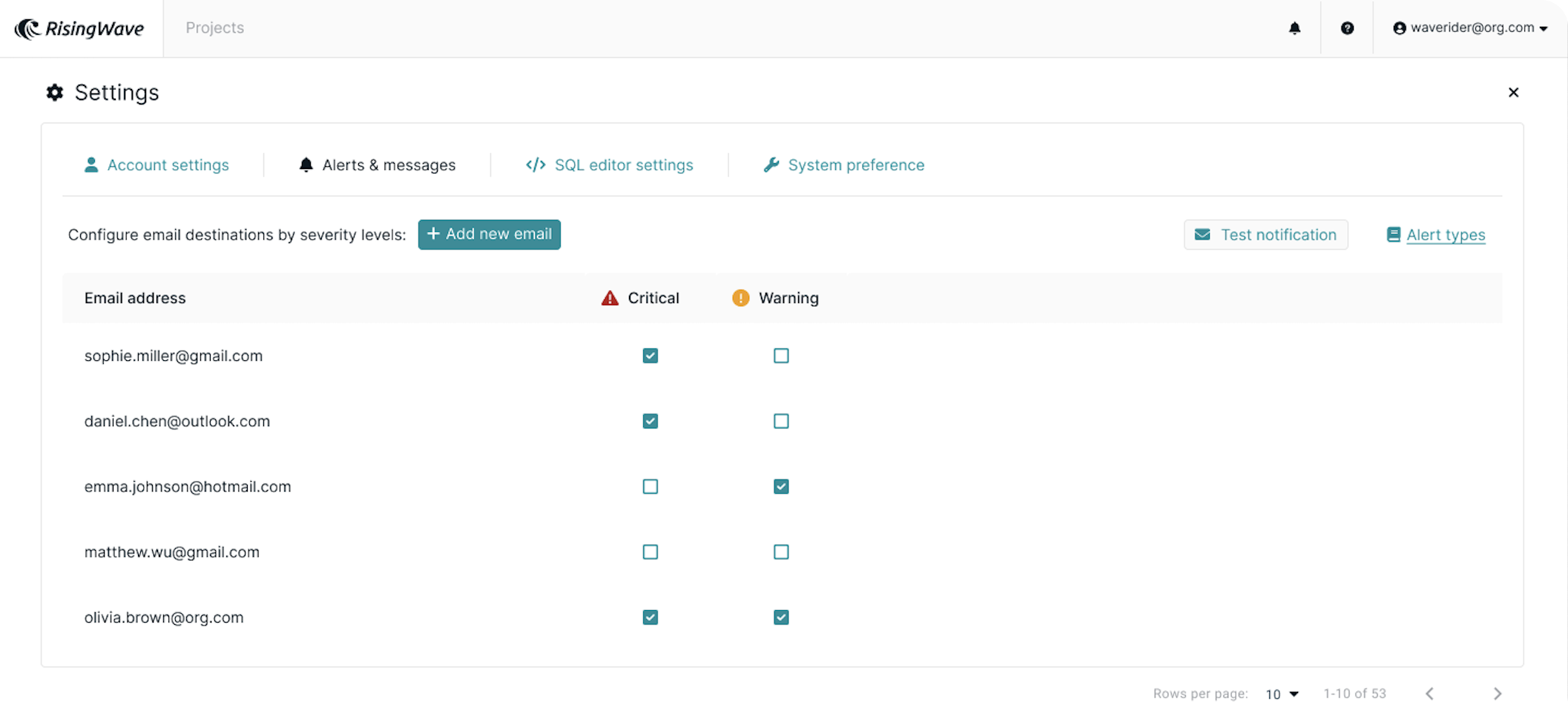 ### Email recipients
You can manage the list of email addresses to receive alert notifications.
* **Default recipient**: The email address associated with your login is added as a recipient by default but can be deselected.
* **Add a recipient**: Click **Add new email**, enter the address, and confirm.
* **Configure alerts**: For each recipient, specify the alert severity to receive: **Critical only**, **Warning only**, or **Critical and Warning**.
* **Test notifications**: Select one or more recipients and click **Test notification** to verify email delivery.
* **Remove a recipient**: To remove a recipient, hover over their entry and click the delete icon.
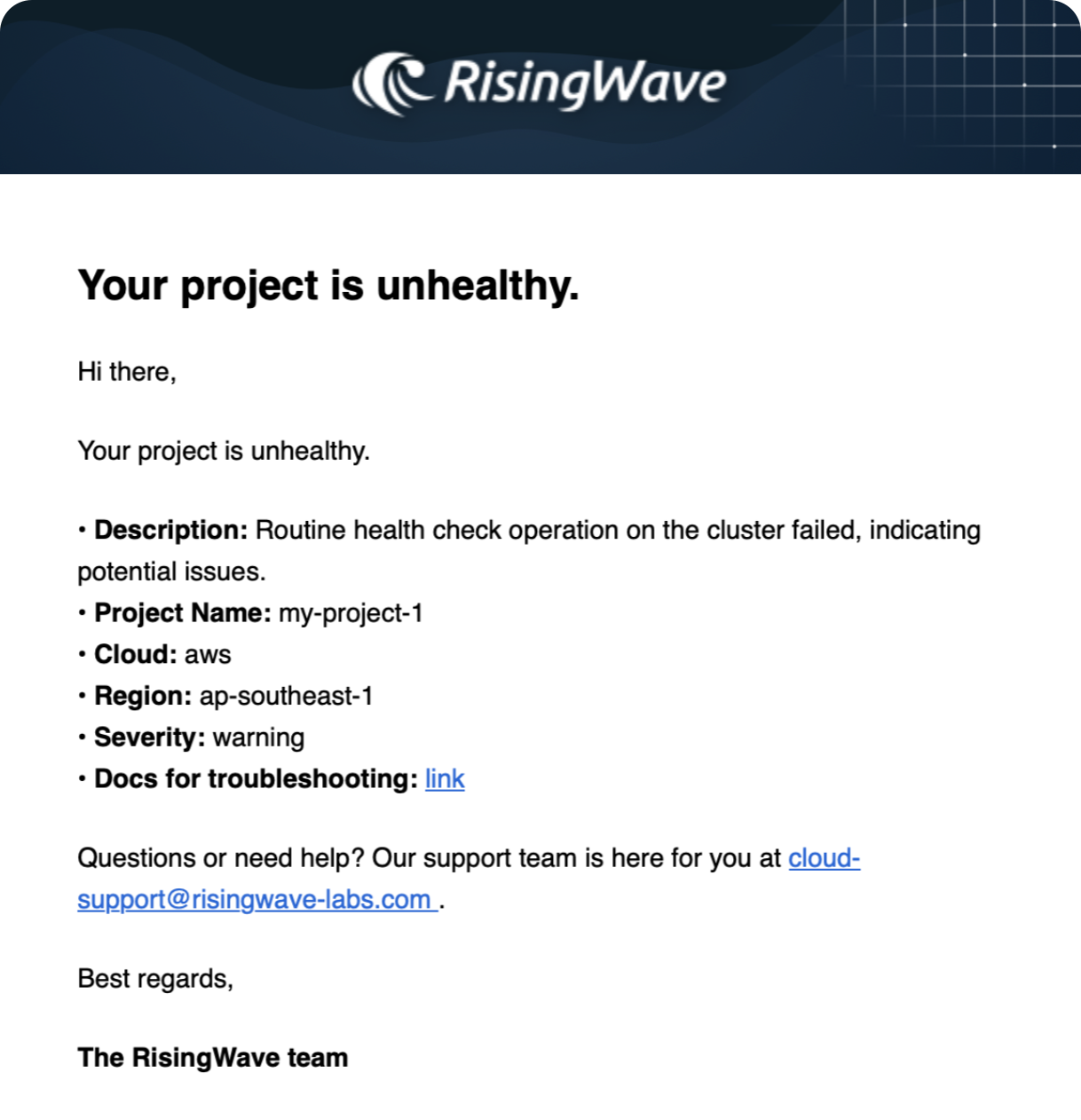
Below is an email example sent to recipients:
### Email recipients
You can manage the list of email addresses to receive alert notifications.
* **Default recipient**: The email address associated with your login is added as a recipient by default but can be deselected.
* **Add a recipient**: Click **Add new email**, enter the address, and confirm.
* **Configure alerts**: For each recipient, specify the alert severity to receive: **Critical only**, **Warning only**, or **Critical and Warning**.
* **Test notifications**: Select one or more recipients and click **Test notification** to verify email delivery.
* **Remove a recipient**: To remove a recipient, hover over their entry and click the delete icon.
Below is an email example sent to recipients:
 ### Alert types
Click **Alert Types** to see a comprehensive reference of all possible alerts, organized by severity and category. This allows you to understand the full range of monitorable events within the system.
## Alert playbooks
**Alert playbooks** are provided to guide you through effective incident response. Each playbook details an alert's description, common triggers, and provides step-by-step instructions for diagnosis and resolution.
For detailed guidance, see [Alert playbooks](/cloud/alert-playbooks).
## Third party integration
These integrations allow you to automatically create incidents or send notifications to third-party systems when alerts are triggered. By routing email alert notifications to these platforms, you can streamline incident response and ensure your team is promptly notified through your preferred tools. Below are guides for some common integrations:
* [PagerDuty](https://support.pagerduty.com/main/docs/email-integration-guide#integrate-with-a-pagerduty-service)
* [Slack](https://slack.com/help/articles/206819278-Send-emails-to-Slack)
### Alert types
Click **Alert Types** to see a comprehensive reference of all possible alerts, organized by severity and category. This allows you to understand the full range of monitorable events within the system.
## Alert playbooks
**Alert playbooks** are provided to guide you through effective incident response. Each playbook details an alert's description, common triggers, and provides step-by-step instructions for diagnosis and resolution.
For detailed guidance, see [Alert playbooks](/cloud/alert-playbooks).
## Third party integration
These integrations allow you to automatically create incidents or send notifications to third-party systems when alerts are triggered. By routing email alert notifications to these platforms, you can streamline incident response and ensure your team is promptly notified through your preferred tools. Below are guides for some common integrations:
* [PagerDuty](https://support.pagerduty.com/main/docs/email-integration-guide#integrate-with-a-pagerduty-service)
* [Slack](https://slack.com/help/articles/206819278-Send-emails-to-Slack)