> ## Documentation Index
> Fetch the complete documentation index at: https://docs.risingwave.com/llms.txt
> Use this file to discover all available pages before exploring further.
# Maintenance windows
> Configure when RisingWave Cloud can perform automated maintenance operations, such as upgrading deprecated versions, within a scheduled time window.
## Overview
A maintenance window defines a recurring time slot during which RisingWave Cloud may perform automated operations on your project. Currently, the primary automated operation is **version upgrades** for projects running deprecated RisingWave versions.
When a version you are running reaches end-of-support (see [release support policy](/changelog/release-support-policy)), RisingWave Cloud will automatically schedule an upgrade to a supported version. The upgrade is executed only during your configured maintenance window.
## Default maintenance window
All projects are assigned a default maintenance window:
| Setting | Default |
| :----------------- | :---------- |
| Day | Sunday |
| Start time | 22:00 UTC |
| Duration | 120 minutes |
| Automated upgrades | Enabled |
## Configure your maintenance window
### During project creation
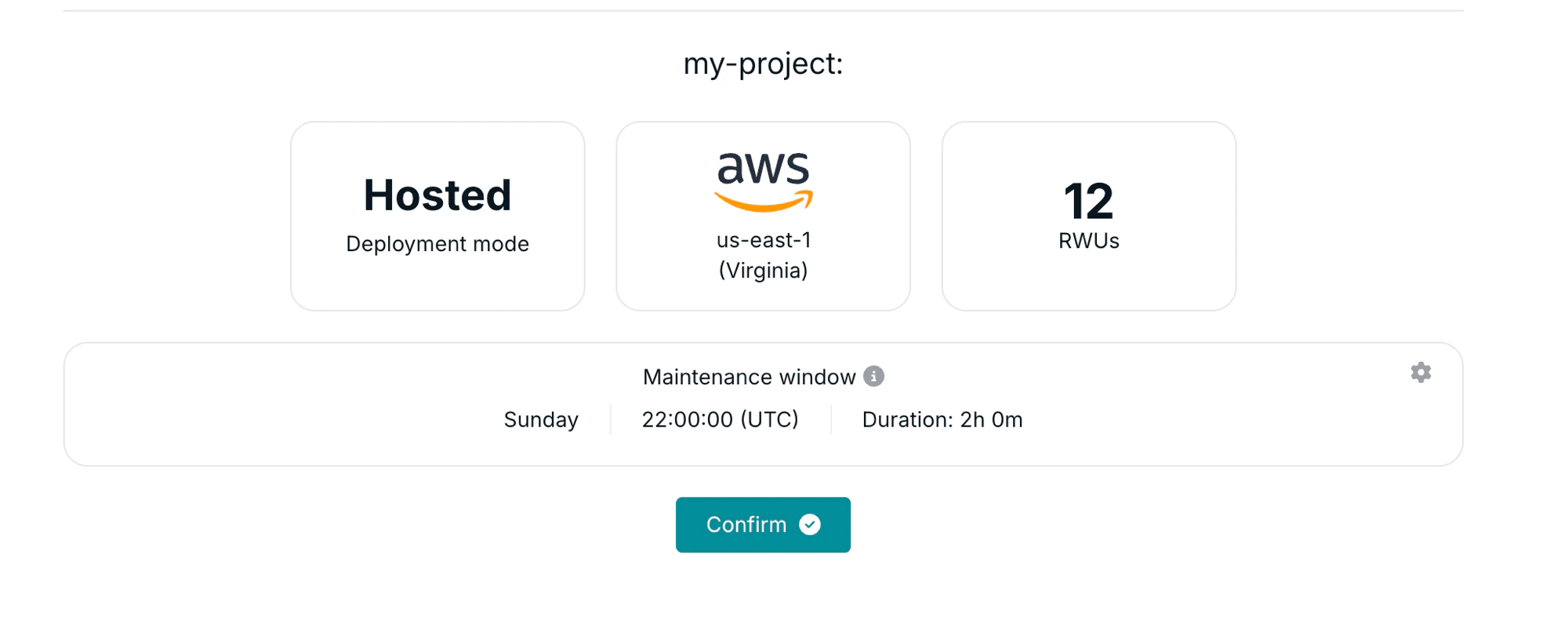
The maintenance window is shown on the project confirmation screen before you create your project. Click the gear icon to open the **Maintenance rules** dialog and adjust the settings.
 ### From an existing project
To update the maintenance window for an existing project:
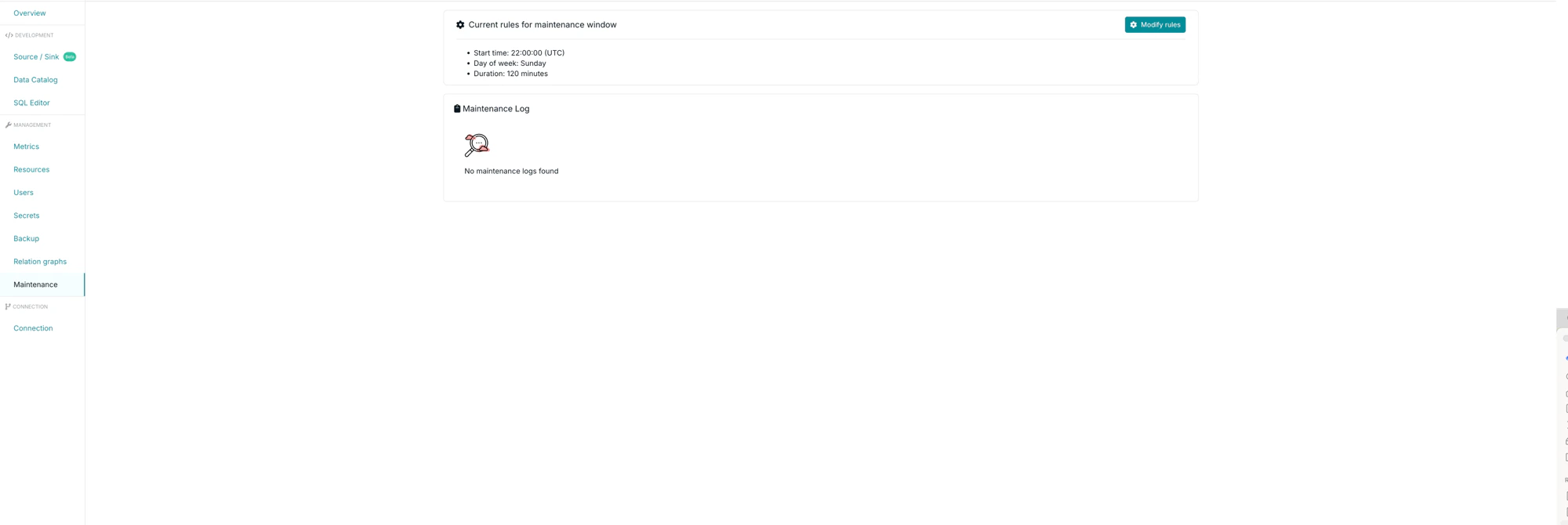
1. Open your project and go to the **Maintenance** tab in the left sidebar.
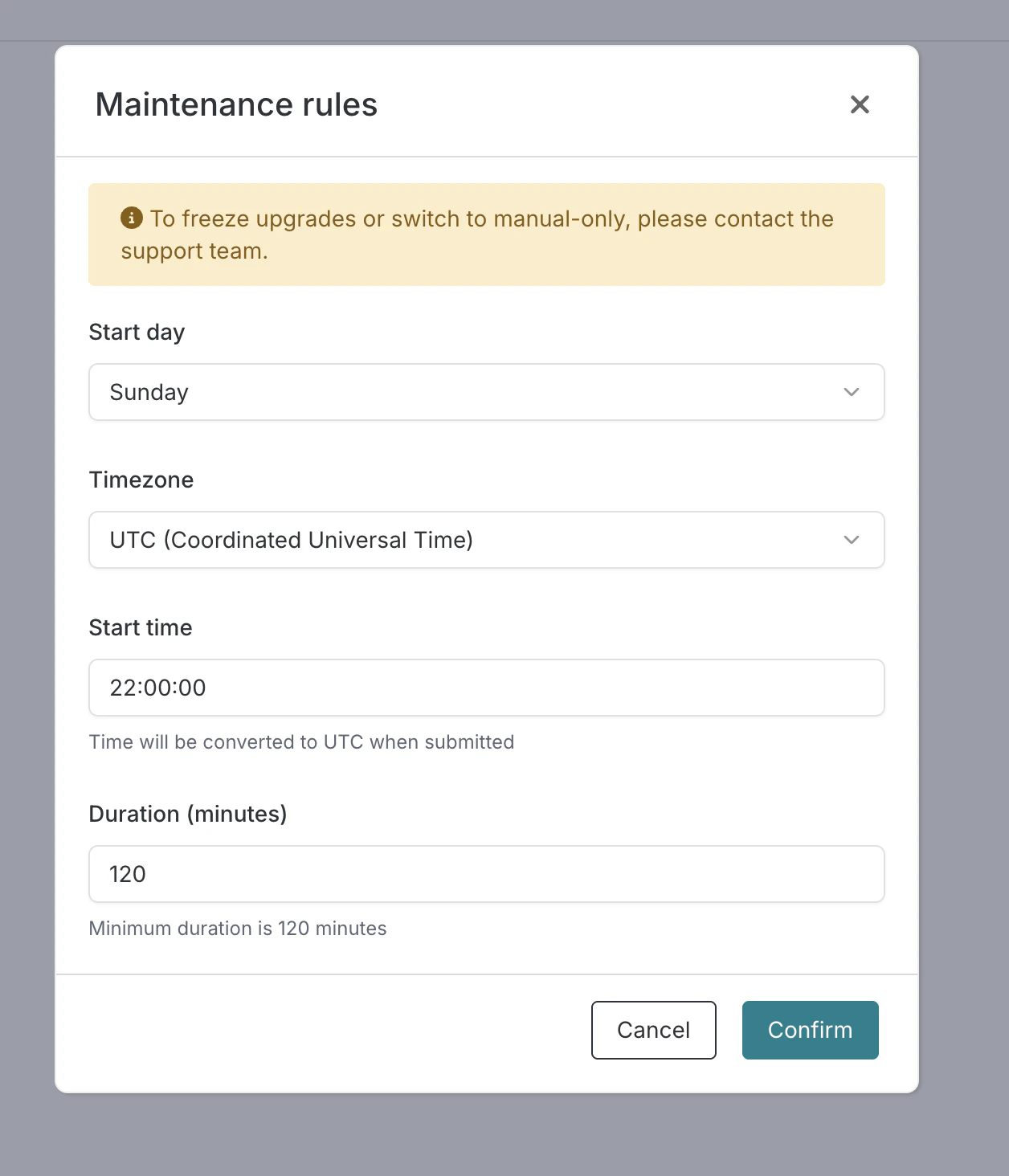
2. Click **Modify rules** to open the **Maintenance rules** dialog.
3. Adjust the settings and click **Confirm**.
### From an existing project
To update the maintenance window for an existing project:
1. Open your project and go to the **Maintenance** tab in the left sidebar.
2. Click **Modify rules** to open the **Maintenance rules** dialog.
3. Adjust the settings and click **Confirm**.
 ### Settings
| Setting | Description |
| :--------------------- | :-------------------------------------------------------------------- |
| **Start day** | Day of the week on which the window begins |
| **Timezone** | Timezone for the start time. The time is converted to UTC when saved. |
| **Start time** | Time the window begins (in the selected timezone) |
| **Duration (minutes)** | How long the window lasts. Minimum is 120 minutes. |
## How automated upgrades work
When your project is running a deprecated version, RisingWave Cloud schedules an upgrade as follows:
1. **Detection** — The system identifies projects running versions below the minimum supported threshold.
2. **Scheduling** — An upgrade plan is created and scheduled for the start of your next maintenance window.
3. **Execution** — During the maintenance window, the upgrade runs. If your project is stopped, it is temporarily started for the upgrade and then returned to the stopped state afterward.
4. **Retry** — If an upgrade attempt fails, it is rescheduled for the next maintenance window. Up to 3 attempts are made before the plan is marked as failed and the team is alerted.
**Additional behaviors:**
* A project will not have more than one automated upgrade attempt per calendar week.
* A pre-upgrade backup is taken automatically before the upgrade runs.
* Projects running pre-release or tagged versions (e.g., release candidates) are not eligible for automated upgrades.
## View upcoming and past maintenance
The **Maintenance** tab shows both the next scheduled upgrade and a log of past maintenance operations.
When an upgrade has been scheduled, a banner at the top of the tab shows the upcoming maintenance time and the target version.
### Settings
| Setting | Description |
| :--------------------- | :-------------------------------------------------------------------- |
| **Start day** | Day of the week on which the window begins |
| **Timezone** | Timezone for the start time. The time is converted to UTC when saved. |
| **Start time** | Time the window begins (in the selected timezone) |
| **Duration (minutes)** | How long the window lasts. Minimum is 120 minutes. |
## How automated upgrades work
When your project is running a deprecated version, RisingWave Cloud schedules an upgrade as follows:
1. **Detection** — The system identifies projects running versions below the minimum supported threshold.
2. **Scheduling** — An upgrade plan is created and scheduled for the start of your next maintenance window.
3. **Execution** — During the maintenance window, the upgrade runs. If your project is stopped, it is temporarily started for the upgrade and then returned to the stopped state afterward.
4. **Retry** — If an upgrade attempt fails, it is rescheduled for the next maintenance window. Up to 3 attempts are made before the plan is marked as failed and the team is alerted.
**Additional behaviors:**
* A project will not have more than one automated upgrade attempt per calendar week.
* A pre-upgrade backup is taken automatically before the upgrade runs.
* Projects running pre-release or tagged versions (e.g., release candidates) are not eligible for automated upgrades.
## View upcoming and past maintenance
The **Maintenance** tab shows both the next scheduled upgrade and a log of past maintenance operations.
When an upgrade has been scheduled, a banner at the top of the tab shows the upcoming maintenance time and the target version.
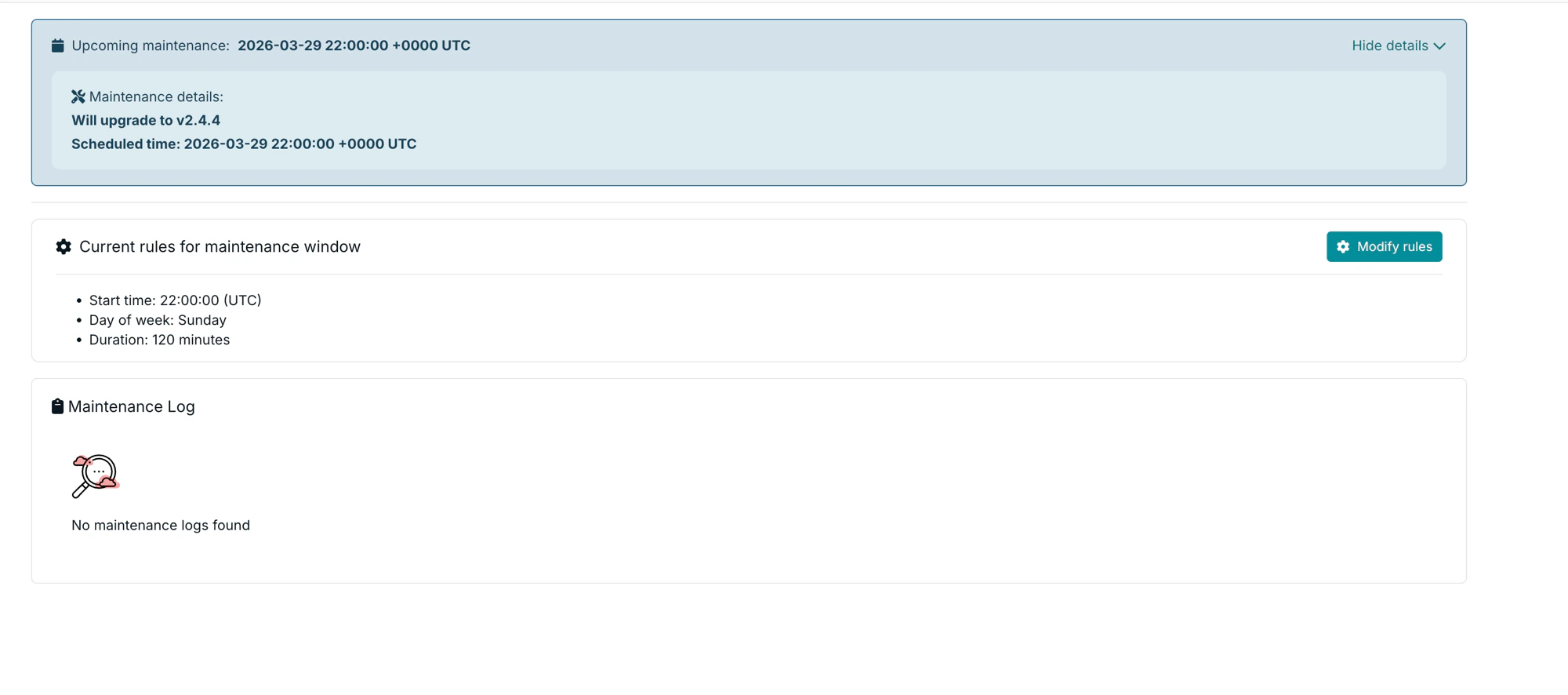 Click **Show details** to expand the banner and see the target version and scheduled time. The **Maintenance Log** section below shows the history of past automated upgrade attempts, including the target version, scheduled time, outcome, and duration.
## Opting out or freezing upgrades
To freeze upgrades or switch to manual-only mode, reach out via [Slack](https://www.risingwave.com/slack). When automated upgrades are disabled, you are responsible for upgrading your project before its version reaches end-of-support. See [Update RisingWave version](/cloud/update-database-version) and the [release support policy](/changelog/release-support-policy) for details.
Click **Show details** to expand the banner and see the target version and scheduled time. The **Maintenance Log** section below shows the history of past automated upgrade attempts, including the target version, scheduled time, outcome, and duration.
## Opting out or freezing upgrades
To freeze upgrades or switch to manual-only mode, reach out via [Slack](https://www.risingwave.com/slack). When automated upgrades are disabled, you are responsible for upgrading your project before its version reaches end-of-support. See [Update RisingWave version](/cloud/update-database-version) and the [release support policy](/changelog/release-support-policy) for details.