> ## Documentation Index
> Fetch the complete documentation index at: https://docs.risingwave.com/llms.txt
> Use this file to discover all available pages before exploring further.
# PrivateLink connection configuration
> Follow the steps below to create a PrivateLink connection between RisingWave Cloud and your VPC.
**Security and Encryption**
* All connections are automatically encrypted using TLS/SSL
* For AWS PrivateLink connections:
* Data in transit is encrypted using AWS internal network encryption
* Any data stored in S3 is encrypted at rest using AWS default encryption keys
* EBS volumes are encrypted using KMS managed keys with automatic key rotation
## Prerequisites
When setting up AWS PrivateLink services, do not use the AWS account root user. Always use IAM users or roles with appropriate permissions following AWS security best practices.
You need to create a project with the Standard plan or Advanced plan in RisingWave Cloud:
* See [Choose a project plan](/cloud/choose-a-project-plan/) for more information. Please note that Trial projects do not support PrivateLink connections.
* The VPC you want to connect to and your project must be in the same region. If your preferred region is not available when creating a project, contact our [support team](mailto:cloud-support@risingwave-labs.com) or [sales team](mailto:sales@risingwave-labs.com).
You need to set up a PrivateLink service in your VPC and make sure it runs properly. The following links might be helpful:
* For AWS, see [Share your services through AWS PrivateLink](https://docs.aws.amazon.com/vpc/latest/privatelink/privatelink-share-your-services.html).
* For GCP, see [GCP Published services](https://cloud.google.com/vpc/docs/about-vpc-hosted-services).
* For Azure, see [Azure Private Link services](https://learn.microsoft.com/en-us/azure/private-link/private-link-service-overview).
## Create PrivateLink connection
1. In the [RisingWave Cloud Console](https://cloud.risingwave.com), go to your project and click **Connection** in the left sidebar.
2. Select the **PrivateLink** tab, and click **Create PrivateLink**.
3. For **Name**, enter a descriptive name for the connection.
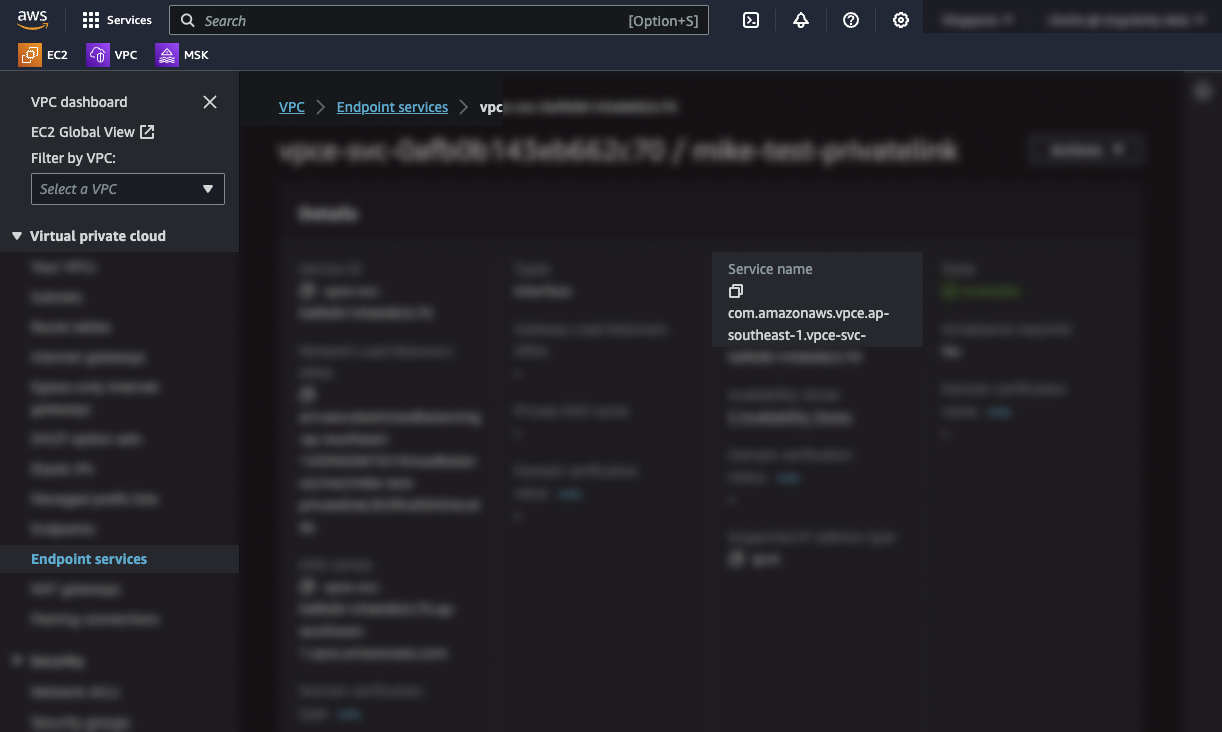
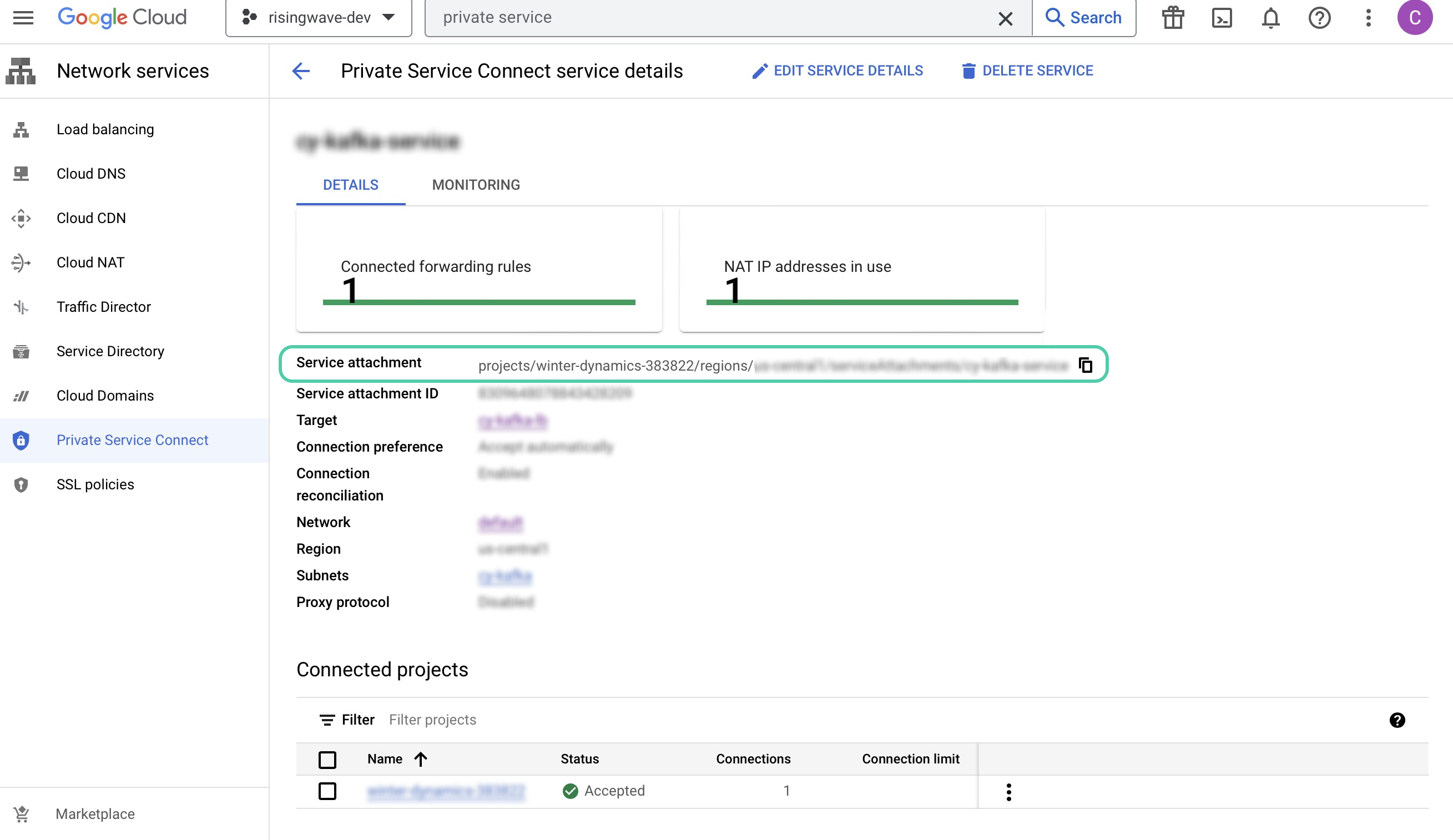
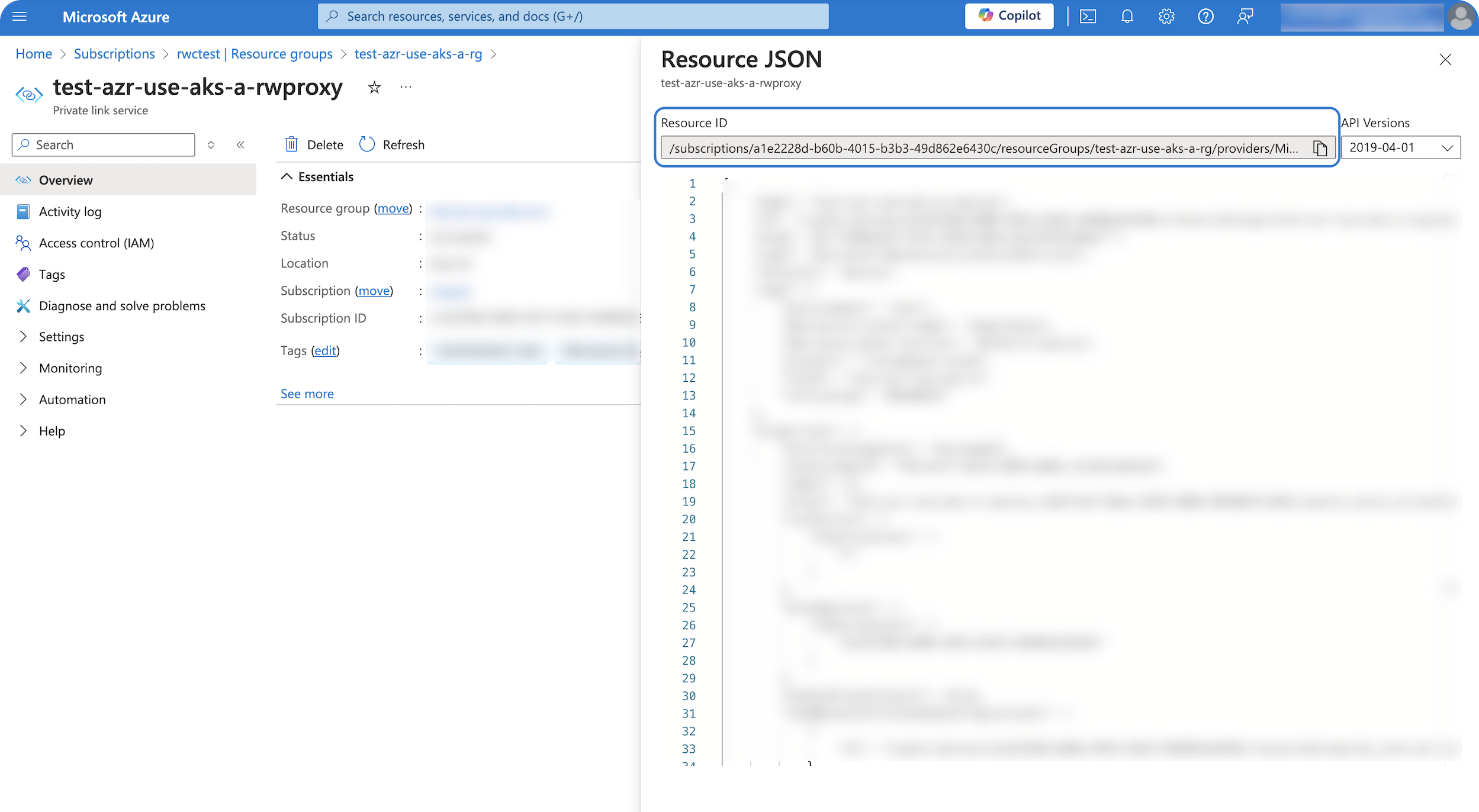
4. For **Endpoint service name** or **Service attachment** or **Private link service resource ID:**
You can find it in the [Amazon VPC Console](https://console.aws.amazon.com/vpc/) → **Endpoint services** → **Service name** section.
 You can find it in the [Google Cloud Console](https://console.cloud.google.com/) → **Network services** → **Private Service Connect**.
 You can find it in the [Azure Portal](https://portal.azure.com/) → **Private link service** section.
 5. Click **Confirm** to create the connection.
For inquiries about PrivateLink for Confluent private Kafka clusters, please reach out to our [support team](mailto:cloud-support@risingwave-labs.com) first. We will handle these manual steps:
* Before provisioning a RisingWave PrivateLink, ensure the cluster's Availability Zones (AZs) are a subset of the AZs offered by RisingWave.
* Manually add DNS records after provisioning the PrivateLink.
We aim to automate this process in the future to make it even easier.
## Create source/sink with PrivateLink
Now, you can create a source or sink with the PrivateLink connection using SQL.
For details on how to use the VPC endpoint to create a source with the PrivateLink connection, see [Create source with PrivateLink connection](/ingestion/sources/kafka-config#privatelink-configuration); for creating a sink, see [Create sink with PrivateLink connection](/integrations/destinations/apache-kafka#create-sink-with-privatelink-connection).
## Drop PrivateLink connection
When you no longer need a connection:
1. In the [RisingWave Cloud Console](https://cloud.risingwave.com), go to your project and click **Connection** in the left sidebar. Select the **PrivateLink** tab.
2. Hover over the connection you want to drop and click the delete button, then confirm the deletion.
5. Click **Confirm** to create the connection.
For inquiries about PrivateLink for Confluent private Kafka clusters, please reach out to our [support team](mailto:cloud-support@risingwave-labs.com) first. We will handle these manual steps:
* Before provisioning a RisingWave PrivateLink, ensure the cluster's Availability Zones (AZs) are a subset of the AZs offered by RisingWave.
* Manually add DNS records after provisioning the PrivateLink.
We aim to automate this process in the future to make it even easier.
## Create source/sink with PrivateLink
Now, you can create a source or sink with the PrivateLink connection using SQL.
For details on how to use the VPC endpoint to create a source with the PrivateLink connection, see [Create source with PrivateLink connection](/ingestion/sources/kafka-config#privatelink-configuration); for creating a sink, see [Create sink with PrivateLink connection](/integrations/destinations/apache-kafka#create-sink-with-privatelink-connection).
## Drop PrivateLink connection
When you no longer need a connection:
1. In the [RisingWave Cloud Console](https://cloud.risingwave.com), go to your project and click **Connection** in the left sidebar. Select the **PrivateLink** tab.
2. Hover over the connection you want to drop and click the delete button, then confirm the deletion.